
Crafting Guide
Make Custom Stickers from Your AI Avatar with Cricut
March 2026 · 6 min read

Custom stickers are one of the most popular things people make with a Cricut — and your MiniFigureAI avatar is the perfect design to start with. In this guide you'll learn how to turn your avatar into professional-looking die-cut stickers using Cricut Print Then Cut, create a full sticker sheet, and make waterproof versions that survive water bottles and outdoor use.
What You Need
- Any Cricut cutting machine (Explore, Maker, or Joy Xtra)
- Cricut Printable Sticker Paper or Cricut Printable Vinyl (vinyl recommended for waterproof stickers)
- Inkjet printer (not laser)
- Clear laminate sheets (optional, but required for waterproof results)
- Cricut StandardGrip mat
- Your MiniFigureAI avatar PNG — free at minifigureai.com
Step 1 — Generate Your Avatar
Go to minifigureai.com, upload a photo, and pick a style. For stickers, styles with clean outlines and bold colors work best — see the recommendations below.
Your first avatar is free, no account required. Create as many styles as you want to compare — Chibi, Pixel Art, and Minifigure are all sticker favorites.
Step 2 — Download the PNG
Download your avatar as a PNG. The file already has a transparent background, which is exactly what Cricut needs to cut around the edges of your design. No editing required.
Step 3 — Upload to Cricut Design Space
- Open Cricut Design Space and start a new project.
- Click Upload and select your avatar PNG.
- Select Complex image type and click Continue.
- Cricut detects the transparent background and shows a preview of the cut line.
- Click Save, then Add to Canvas.
- Set the layer operation to Print Then Cut.
Creating a Sticker Sheet Layout
One of the best things about Cricut stickers is that you can fit multiple avatars on a single sheet and cut them all in one pass. Here's how:
- Add your avatar to the canvas. Once it's there, click Edit → Duplicate (or Ctrl+D / Cmd+D) to create copies.
- Resize each copy to different sizes — mix large (3 inches), medium (2 inches), and small (1 inch) stickers on the same sheet for variety.
- Arrange them on the canvas to fill the 6.75 x 9.25 inch Print Then Cut area without overlapping. Leave a small gap (about 0.1 inch) between each sticker for clean cuts.
- Add avatars of different people or styles by uploading additional PNGs and arranging them alongside the first.
A standard sheet can hold 6–12 stickers depending on size, giving you a variety pack from a single print-and-cut pass.
Kiss-Cut vs Die-Cut Stickers — What's the Difference?
Kiss-Cut
The blade cuts only through the top sticker layer, leaving the backing paper intact. Stickers stay on the sheet and are easy to peel one at a time — great for distributing at events or giving as gifts.
Die-Cut
The blade cuts all the way through both layers. Each sticker is a standalone shape with no extra backing border. This is what Cricut's Print Then Cut produces by default — individual stickers shaped exactly like your avatar.
To get kiss-cut results with Cricut, add a rectangular border around each sticker design in Design Space and cut that outer shape instead of the avatar outline directly.
Step 4 — Print
Click Make It in Design Space. Load your sticker paper or printable vinyl into your inkjet printer with the printable side facing down(confirm with your printer's manual). Print at the highest quality setting for the best color saturation.
For waterproof stickers, apply a clear laminate sheet over the printed vinyl after printing and before loading into Cricut. Smooth it on carefully to avoid bubbles, then trim to the edge of your sticker paper.
Step 5 — Cut
Place your printed sticker sheet face-up on a StandardGrip mat and load it into the Cricut. The machine scans the printed registration marks, then cuts precisely around each avatar outline.
Step 6 — Peel Your Stickers
Remove the mat from the machine and gently flex it to release the stickers. Peel each sticker away from the backing. Your die-cut avatar stickers are ready to use — stick them on laptops, water bottles, notebooks, phone cases, or anywhere else that deserves a personalized touch.
Waterproof Stickers: Use Printable Vinyl + Laminate
Standard sticker paper is not waterproof — water can cause the ink to run or the paper to wrinkle. If you want stickers for water bottles, outdoor use, or anything that gets wet, follow this approach:
- Material: Use Cricut Printable Vinyl instead of sticker paper.
- Print: Print your avatars on the vinyl with your inkjet printer. Allow 5 minutes for ink to dry fully.
- Laminate: Apply a clear laminate sheet over the printed vinyl. Smooth from the center outward to remove air bubbles.
- Cut: Load into Cricut and cut as normal — the laminate and vinyl cut together cleanly.
The laminate layer makes the sticker waterproof, scratch-resistant, and gives it a professional glossy finish.
Chibi style

Pixel Art style
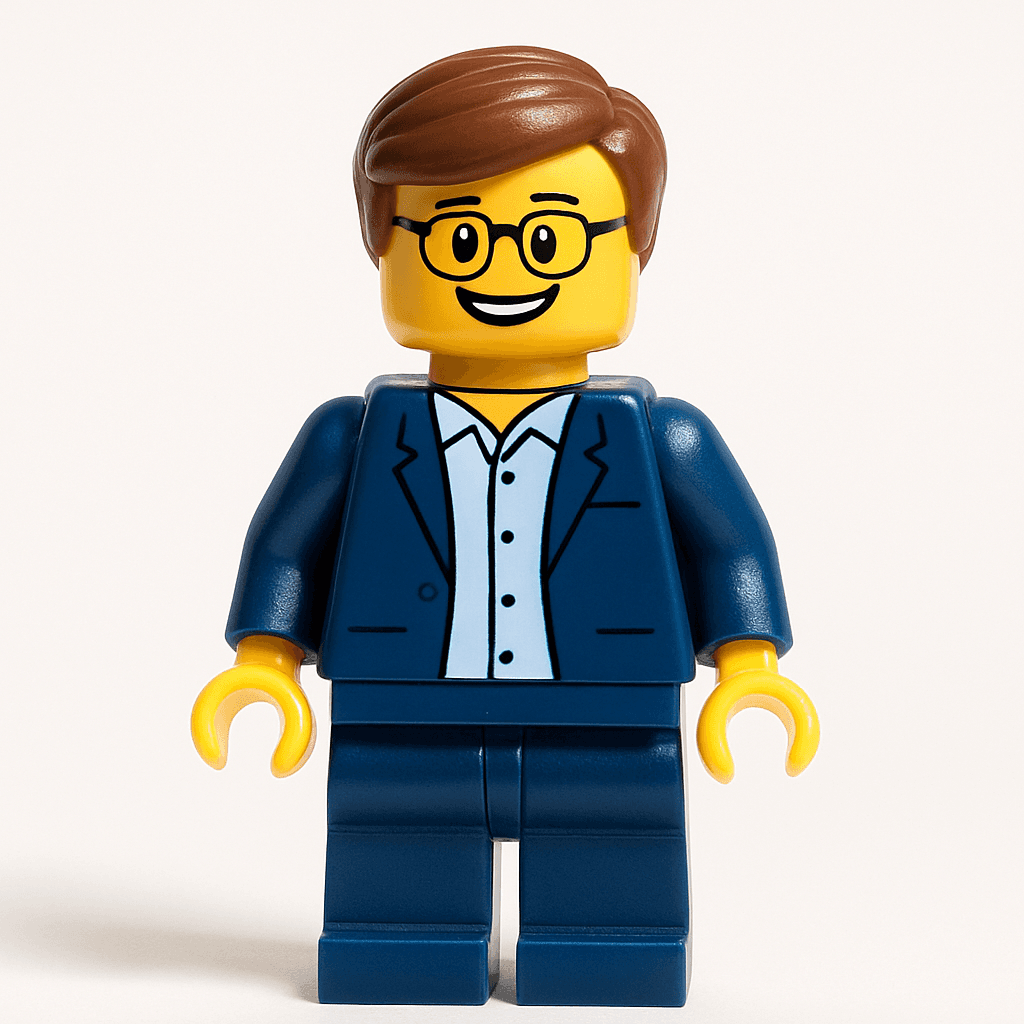
Minifigure style
Best Styles for Stickers
The best sticker styles have clear outlines, bold colors, and interesting shapes. These three styles consistently produce the most striking results:
- Chibi — Ultra-cute proportions with a distinctive silhouette. The large head makes for an eye-catching sticker shape. A collector's favorite.
- Pixel Art — Retro 8-bit style. Square, blocky edges cut cleanly and the pixelated look stands out on any surface. Perfect for gamer aesthetics.
- Minifigure — Instantly recognizable silhouette. Clean geometry makes for precise Cricut cuts every time.
Explore all styles on the styles page.
Frequently Asked Questions
What sticker paper should I use with Cricut?
Use Cricut Printable Sticker Paper for standard stickers, or Cricut Printable Vinyl for waterproof stickers. Both work with any inkjet printer and Cricut's Print Then Cut workflow. For extra durability, apply a laminate sheet over printed vinyl.
What is the difference between kiss-cut and die-cut stickers?
Kiss-cut stickers are cut only through the top sticker layer, leaving the backing paper intact — making them easy to peel and distribute on sheets. Die-cut stickers are cut all the way through both layers, resulting in individual stickers shaped exactly like your avatar. Cricut's Print Then Cut feature produces die-cut style results.
How do I make waterproof stickers with Cricut?
Use Cricut Printable Vinyl (not regular sticker paper) and apply a clear laminate sheet on top before cutting. Laminate protects the ink from water and scratches, making the stickers suitable for water bottles, outdoor use, and anything that gets wet.
Generate Your Avatar Free — Then Make It Real
Your first MiniFigureAI avatar is free. Upload a photo, pick a style, download the PNG, and you're ready for Cricut in under 60 seconds.
Create Your Avatar FreeNo credit card required · First avatar is free
Also see: MiniFigureAI for Crafting · Make a custom t-shirt